
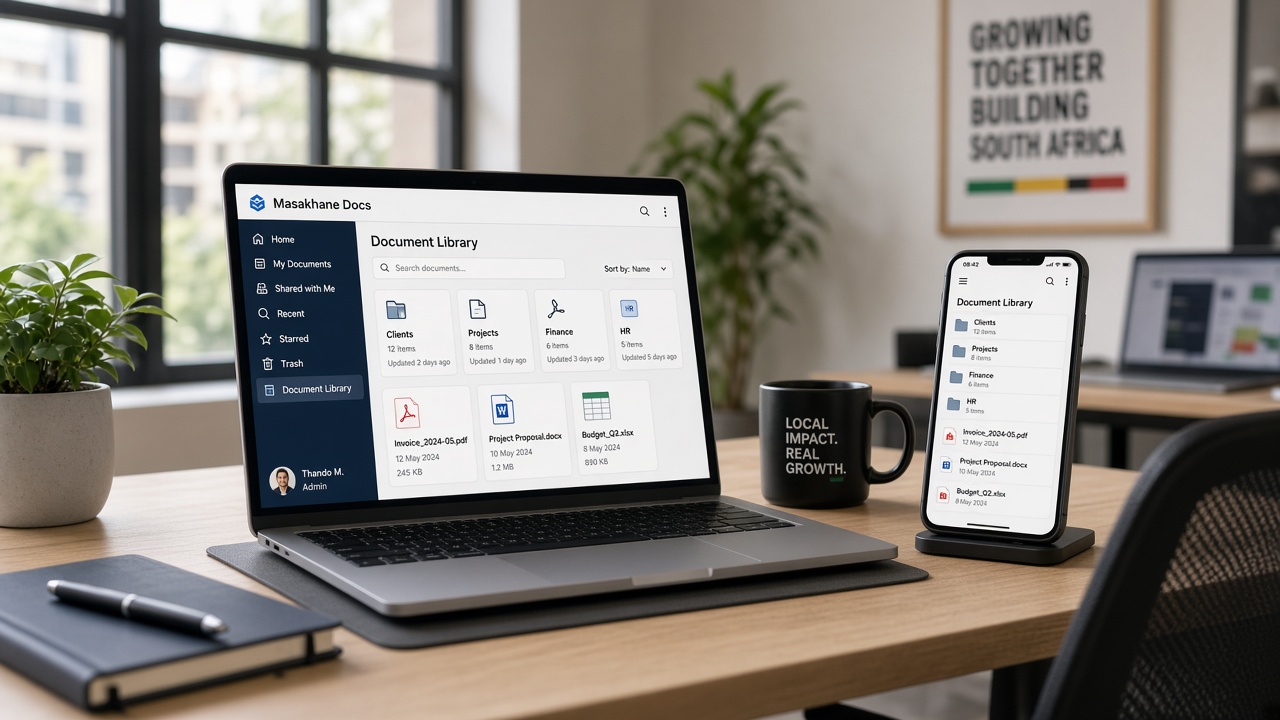
SharePoint is one of those products that most small business owners have heard of but few can explain. Microsoft markets it as a "collaboration platform" and an "intelligent intranet," which tells you almost nothing if you run a 15-person company and just want your team to stop emailing documents back and forth.
Here is what you actually need to know: if your business uses Microsoft Teams (and most small businesses on Microsoft 365 do), you are already using SharePoint. Every time someone uploads a file to a Teams channel, that file is stored in SharePoint. Teams is the app your staff open every day. SharePoint is the storage and permissions engine running behind it. You do not need to learn SharePoint. You need to know it exists, what it does for you quietly, and why it matters that someone sets it up properly.
Which Microsoft 365 Plans Include SharePoint?
SharePoint is not a separate product. It ships with Microsoft 365 Business Standard (~R230/user/month) and Business Premium (~R400/user/month), with no additional licence required. Prices fluctuate with the exchange rate, so check our managed IT pricing page for current rates.
Microsoft 365 Business Basic (~R115/user/month) also includes SharePoint, but with web-only versions of the Office apps. For most small businesses that need the desktop versions of Word, Excel, and Outlook, Business Standard is the starting point.
There is also a standalone SharePoint Plan 1 (around $5/user/month) for businesses that want SharePoint without the rest of Microsoft 365. In practice, very few small businesses use this. If you need SharePoint, you almost certainly need email, Teams, and the Office apps too, so the bundled plans make more sense.
The bottom line: if you are paying for Microsoft 365 Business Standard or above, SharePoint is already part of what you are paying for. You access it through Teams. For a full comparison of the plans available to SA businesses, see our Microsoft 365 plans and pricing guide for small business.
What SharePoint Actually Does Behind Teams
When your team works in Microsoft Teams, they probably think Teams is handling the files. It is not. Teams is the interface. SharePoint is doing the work underneath. Here is what that means in practice:
1. It stores your company's shared files in one place. Every file uploaded to a Teams channel lives in a SharePoint document library. Policies, contracts, templates, HR documents, client folders. Instead of living on someone's laptop or in a shared drive that only works when the office Wi-Fi is up, these files sit in Microsoft's cloud. Anyone with the right permissions can access them from any device, anywhere, including on their phone during load-shedding.
2. It controls who can see and edit what. When you create a Team in Microsoft Teams and add members, SharePoint is what actually enforces the permissions behind the scenes. Your finance channel's files are separate from your sales channel's files because SharePoint keeps them in separate libraries with separate access rules. The new intern does not accidentally delete the company's contracts because SharePoint's permission layer prevents it.
3. It keeps a version history of every file. If someone overwrites a document or breaks a spreadsheet formula, you can roll back to a previous version directly from Teams. That rollback capability is SharePoint. This is not a backup (more on that in the FAQ), but it catches the most common "someone saved over my file" problems without anyone needing to open SharePoint directly.
Your staff experience all three of these through Teams. They never need to know SharePoint is involved. But someone needs to configure SharePoint correctly for these features to work well, and that is where your IT provider comes in.
Why Teams Is the Right Interface (and When You Actually Need SharePoint Directly)
For a small business, Teams is where your team should live. Chat, video calls, file sharing, and collaboration all happen in one app. The Shared tab in each channel (recently renamed from "Files") shows every document that has been shared in that channel, and those documents are stored in SharePoint automatically. Your staff do not need to learn a second tool.
OneDrive handles the personal side. Each person gets 1 TB of private storage for drafts, work in progress, and files only they need. When a file is ready for the team, they share it to a Teams channel, and it moves into SharePoint's shared storage.
For day-to-day work, that is the whole picture. Teams for shared files. OneDrive for personal files. SharePoint running quietly underneath both. Our document management guide for Microsoft 365 walks through how to organise files across all three.
So when does someone actually need to open SharePoint directly? Almost never, for most staff. Teams handles more than people realise:
- Company-wide documents? Create an org-wide team (Teams auto-creates one for organisations under 5,000 users). Upload policies, templates, and handbooks to its General channel. Everyone in the company sees them.
- Internal procedures? Pin a OneNote notebook or a Word document as a tab in a Teams channel. Staff find it without leaving Teams.
- Sharing files with a client? Add them as a guest to a dedicated Team, or generate a secure sharing link with an expiry date directly from Teams. Either way, SharePoint handles the permissions underneath.
The cases where someone genuinely needs the SharePoint admin interface are narrower than most guides suggest:
- Adjusting site-level permissions across multiple groups beyond what Teams channel membership covers
- Managing organisation-wide storage quotas, retention settings, or sharing policies
- Configuring compliance or audit settings required by your industry
These are IT administration tasks, not daily user tasks. In most small businesses, the person who opens SharePoint is whoever manages your IT. Everyone else stays in Teams. If a staff member finds themselves going to SharePoint regularly, that usually means the Teams setup needs adjusting so it surfaces what they need.
5 Things SharePoint Does Behind the Scenes When You Use Teams
SharePoint has hundreds of features. A small business benefits from maybe five of them, and your team experiences all of them through Teams without realising SharePoint is involved.
1. Company-wide document storage. Every business has documents that everyone needs access to: employee handbook, leave policy, letterhead templates, standard contracts, supplier agreements. When your IT provider sets up a "General" channel or a dedicated document Team, those files live in a SharePoint library. Update a policy in one place and everyone sees the current version through their Teams app.
2. Department and project file separation. Your accounting team's files stay separate from your sales team's files because each Team or channel maps to its own SharePoint library with its own permissions. This replaces the shared network drive that used to live on the server in the back room, but without anyone needing to manage SharePoint directly.
3. Internal procedures and knowledge. How do we onboard a new employee? What is the procedure for requesting leave? SharePoint can host simple internal pages that your team searches and finds through Teams. Not a sophisticated wiki, just a practical place to write down the procedures that currently live in one person's head.
4. Secure external sharing. When you share a file from Teams with someone outside your organisation, SharePoint is what enforces the rules behind the scenes: expiry dates on links, view-only versus edit access, whether the recipient needs to sign in or can open the file anonymously. You do the sharing from Teams. SharePoint makes sure it stays controlled. This is more secure than emailing attachments and more professional than sending a download link from a free file-sharing service.
5. Mobile access to everything. The Teams mobile app (and the SharePoint mobile app, for anyone who needs it) gives your team access to all company files from their phone. During load-shedding, on a client visit, or working from home, they find and open documents without needing the office network. The files are in SharePoint's cloud storage. Teams is just the window into it.
What You Probably Do Not Need Yet
If you read Microsoft's SharePoint marketing pages, you will see terms like Power Automate workflows, custom app development, enterprise content management, records management, and intranet portals with personalised news feeds. These are real features, and they solve real problems for larger organisations. Most small businesses working through Teams will not need this complexity right away, but it is worth knowing what is there as your business grows.
Here is what you can set aside for now:
Power Automate workflows. These let you build automated processes (like "when a document is uploaded to this folder, send an email to the manager for approval"). Powerful in theory. In practice, most small businesses do not have enough process volume to justify the setup time, and someone needs to maintain the automations when they break. If your processes become more complex later, this is worth revisiting.
Custom SharePoint apps and web parts. SharePoint can be extended with custom-built applications. Some IT consultancies specialise in building custom dashboards, compliance trackers, and ticketing boards on the SharePoint platform. For most small businesses, this is more complexity than you need. Teams and dedicated off-the-shelf tools will cover your requirements.
Intranet portal with news feeds. Large companies use SharePoint as a corporate intranet with branded pages, department news, and personalised content. A 20-person company typically communicates through Teams chat and channels. You can revisit this if your team grows to the point where structured internal communications become important.
Records management and retention policies. Enterprise compliance features for managing document retention schedules, legal holds, and regulatory requirements. Unless your industry has specific document retention obligations (like financial services or healthcare), this is unlikely to be relevant right now.
The trap is reading about all these SharePoint capabilities and feeling like you need to use them. For most small businesses, Teams gives your staff everything they need for daily collaboration. SharePoint software powers it underneath. The features listed above are there if you need them later, but they are designed for organisations with different demands from yours right now.
How Your IT Provider Should Set Up SharePoint (So Teams Works Properly)
SharePoint ships with your Microsoft 365 subscription, but "included" does not mean "ready to use." The software is there, but someone needs to configure the SharePoint layer so that when your staff open Teams, everything is organised, secure, and easy to find.
This means:
- Creating a logical Team and channel structure that matches how your business actually works, so the SharePoint libraries underneath are organised from day one
- Setting permissions correctly so the right people have access to the right files through Teams, and nobody sees things they should not
- Establishing naming conventions so files are findable six months from now, not just today
- Configuring external sharing settings in SharePoint so your team can share files with clients through Teams without accidentally exposing the entire document library
- Setting up mobile access so staff can reach company files from their phones via the Teams or SharePoint app
Can you do this yourself? Technically, yes. But SharePoint's admin interface is not intuitive, and the permission model has layers that are easy to get wrong. The most common mistake is setting permissions too broadly (everyone can see everything) or too narrowly (people cannot access the files they need through Teams and start emailing documents instead, which defeats the purpose).
Most small businesses get better results by having their IT provider handle the initial SharePoint configuration. It takes a few hours for someone who knows the platform. Once it is set up, the day-to-day experience is straightforward: your staff open Teams, they see their files, they work. The complexity sits in the SharePoint setup, not in the daily use through Teams.
But setup is only half the picture. The bigger challenge is adoption. Your team needs to understand how to use Teams effectively: where to find files, how to share with clients, when to use channels versus chat. Without that understanding, people default to emailing attachments, which defeats the purpose of the whole setup. A structured training session during onboarding introduces your staff to what Teams and SharePoint can do for them, and lays the groundwork for the new way of working.
What most businesses underestimate is the ongoing side. Change management is a bigger challenge than the technical setup. Staff forget what they learned in training. New employees join without the same introduction. Someone discovers a workaround that bypasses the structure entirely. This is where having managed IT support makes a real difference: when a user gets stuck trying to share a file or cannot find a document, they have someone to call who can walk them through it and reinforce the right habits. That ongoing availability is what turns a well-configured system into one people actually use.
At TechCloud, SharePoint configuration and Teams onboarding are part of our managed IT services. We set up the structure, permissions, and sharing policies, then train your team on how to work within them. As your business grows, when a new employee joins, a department restructures, or you need to share files with a new client, we handle the adjustments and help your team adapt. For a broader look at how cloud tools fit together for small business, see our guide to cloud solutions for small business in South Africa.
How Much Does SharePoint Cost in South Africa?
For most small businesses, SharePoint costs nothing extra. It is included in Microsoft 365 Business Standard (~R230/user/month), Business Premium (~R400/user/month), and Business Basic (~R115/user/month). These prices are denominated in US dollars and converted at the prevailing exchange rate, so they fluctuate. Check our pricing page for the latest Rand figures.
If you are already on one of these plans for email, Teams, and the Office apps, you are already paying for SharePoint. There is no additional licence to buy.
Microsoft also offers a standalone SharePoint Online Plan 1 at around $5/user/month for businesses that want SharePoint without the rest of Microsoft 365. This makes sense for very specific use cases (like a business that uses Google Workspace for email but wants SharePoint for document management), but it is unusual for small businesses in South Africa.
The real cost of SharePoint for a small business is not the licence. It is the setup and the adoption process that follows. Getting the structure, permissions, and policies configured correctly so that Teams works the way your business needs takes expertise. Then your team needs training to understand what is possible and ongoing support to keep using it properly as habits form and staff change. If your IT provider handles both as part of managed support, there is no separate project fee. If you are engaging someone as a one-off project, expect a few hours of consulting time for the setup, but keep in mind that without ongoing support, adoption tends to stall.
Frequently Asked Questions
Is SharePoint included in Microsoft 365?
Yes. SharePoint Online is included in all Microsoft 365 Business plans: Business Basic, Business Standard, and Business Premium. If you are on any of these plans, you already have SharePoint working behind Teams. You do not need to buy a separate licence. The differences between plans relate to whether you get desktop Office apps (Standard and above) and advanced security features (Premium), not whether SharePoint is included.
When should I open SharePoint instead of Teams?
For most day-to-day file work, you do not need to open SharePoint at all. Teams handles file sharing, uploading, and collaboration within channels, and those files are stored in SharePoint automatically. You open SharePoint directly when you need to manage something Teams does not surface: setting up document libraries that are not linked to a specific Team, adjusting site-level permissions, creating a simple internal page (like a company procedures page), or configuring external sharing links for clients. In a typical small business, the staff use Teams for files and the IT administrator or IT provider uses SharePoint for the setup and structure underneath.
Do I need SharePoint if I only have 5 employees?
You are already using it if you use Teams. SharePoint provides the file storage behind every Teams channel. With 5 employees, your needs are covered by working in Teams (for shared files) and OneDrive (for personal files). You benefit from having someone set up the permissions and folder structure in SharePoint properly, but your staff will interact with it entirely through Teams, not through the SharePoint interface.
Can I access SharePoint files on my phone?
Yes. The easiest way is through the Microsoft Teams app, which gives you access to all your channel files on the go. There is also a dedicated SharePoint app for both iPhone and Android if you need to browse SharePoint sites directly. During load-shedding or while travelling, your team can access company files from a mobile data connection without needing to be on the office network.
Is SharePoint secure for storing client documents?
SharePoint uses strong encryption for data in transit and at rest, and Microsoft's infrastructure meets international compliance standards including ISO 27001 and SOC 2. For most small businesses, this is a higher security standard than anything you could run in your own office.
That said, security depends on how your SharePoint environment is configured. Permissions need to be set correctly so external parties cannot access internal files. Sharing links need expiry dates. Multi-factor authentication should be enabled on all accounts. These are configuration decisions that your IT provider handles, not features that work automatically.
Two important points to be clear about: first, SharePoint's version history (which lets you roll back file changes) is not the same as a backup. If you need long-term data retention or protection against ransomware that syncs to your cloud storage, you need a separate backup solution. Second, using a secure platform does not automatically make your business POPIA compliant. POPIA compliance covers your processes for collecting, storing, and processing personal information, not just where the files sit. Your IT provider should configure your environment with both security and compliance in mind.
Talk to TechCloud About Your Teams and SharePoint Setup
If your business is on Microsoft 365 and your team is working in Teams, SharePoint is already doing the heavy lifting with your files. The question is whether it has been set up properly. The difference between a well-configured SharePoint environment and a neglected one is the difference between your team finding files in seconds through Teams and spending ten minutes searching through email attachments.
TechCloud configures and manages SharePoint as part of our managed IT support for small businesses across South Africa. We handle the structure, the permissions, and the ongoing adjustments as your team changes, so your staff just open Teams and everything works. No enterprise complexity. No features you will never use. Just practical cloud file management behind the tools your team already knows.
- Phone: 010 590 0090
- Mobile: 084 970 5196
- Email: info@techcloud.co.za
- Website: Get in touch